How to Turn Office Documents Into a Meeting-Ready Brief
Most office decisions are not hidden in one clean document. They are spread across PDFs, Word drafts, spreadsheets, review comments, meeting notes, and diagrams.
That is why preparing a useful meeting brief can take longer than the meeting itself. Someone has to find the relevant files, read the comments, check the spreadsheet, understand what changed, and turn everything into a concise recommendation.
Document.Bot is designed for that kind of everyday document work. Instead of uploading files one by one into a generic chat, you point Document.Bot at the project folder and ask it to work across the files in place.
The short demo below shows the workflow end to end: Document.Bot starts from a real project folder, inspects PDFs, Word drafts, spreadsheets, comments, and diagrams, then writes a meeting-ready brief back into the workspace with source-backed review items.
This example uses a fictional company, Northstar Home Systems. The leadership team is considering a small AI support-assistant pilot. The useful context is scattered across:
- public guidance PDFs
- a rollout plan in Word
- a customer-data policy draft with review comments
- support operations notes
- vendor security notes
- spreadsheets with customer feedback, vendor risk, and action owners
- Markdown workflow diagrams
The final report was not written upfront. Document.Bot inspected the folder during the run and created the brief as a new file.
Why This Is Hard In Normal Tools
Generic AI chat tools are useful when you have one file and a quick question. But many office tasks are messier:
- the PDF explains the framework
- the Word document contains the draft plan
- the important objection is inside a comment
- the spreadsheet has the owner, due date, and status
- the diagram explains the workflow
- the final answer needs to be a file you can share
Uploading one document gives the AI only part of the story. Uploading every file is slow, repetitive, and often not allowed for sensitive company material.
Document.Bot starts from the folder instead. It indexes the files, lets the AI agent search and open the sources, and keeps the output inside the same working area.
Step 1: Start From The Real Project Folder
In the demo, the folder contains familiar office material: PDFs, Word files, Excel files, and Markdown notes.
The first screen shows an official PDF open next to the project folder. This matters because users should be able to inspect the original source, not only read an AI summary of it.
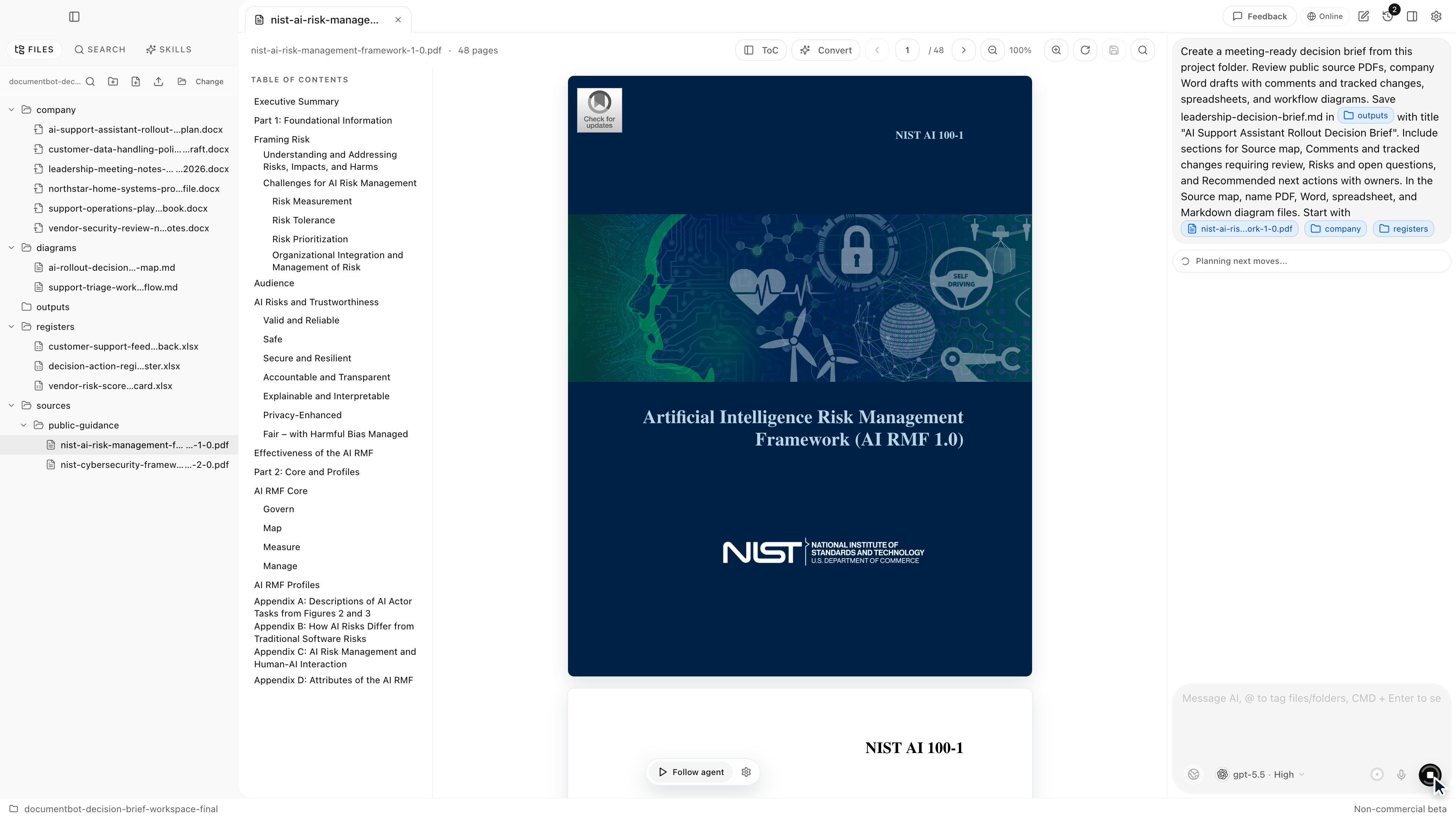
For an average office team, the source might be a policy, proposal request, research report, customer brief, security checklist, meeting pack, or internal operating procedure.
The point is the same: the AI starts from the actual folder where the work already lives.
Step 2: Include Word Comments And Draft Revisions
Meeting prep often depends on what reviewers said, not only on the document text. In this example, the rollout plan and policy draft include comments and tracked-change style revisions.
Document.Bot can inspect the Word files and surface items that still need human attention.
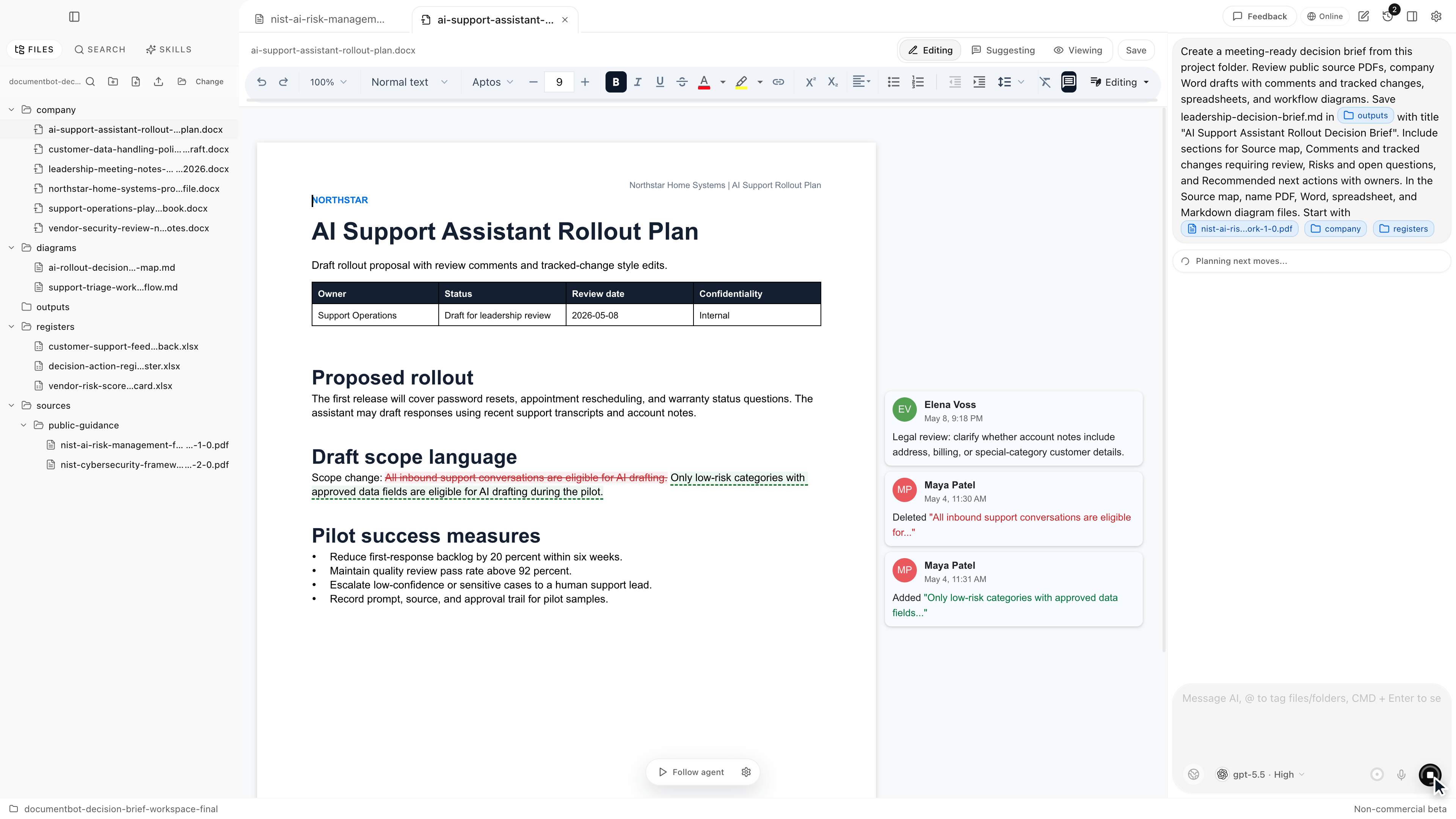
That is useful for normal office work because comments often contain the real blockers:
- legal has not approved a phrase
- privacy wants a clearer data rule
- security needs vendor evidence
- a manager changed the scope
- someone asked for a decision before launch
A good meeting brief should not flatten those into a confident summary. It should say which items are still unresolved.
Step 3: Use The Spreadsheet, Not Just The Documents
Many decisions live partly in spreadsheets. A document may describe the plan, but the spreadsheet often has the volume, status, risk score, owner, or due date.
In the demo, Document.Bot reads spreadsheet registers for customer support feedback, vendor risk, and action tracking.
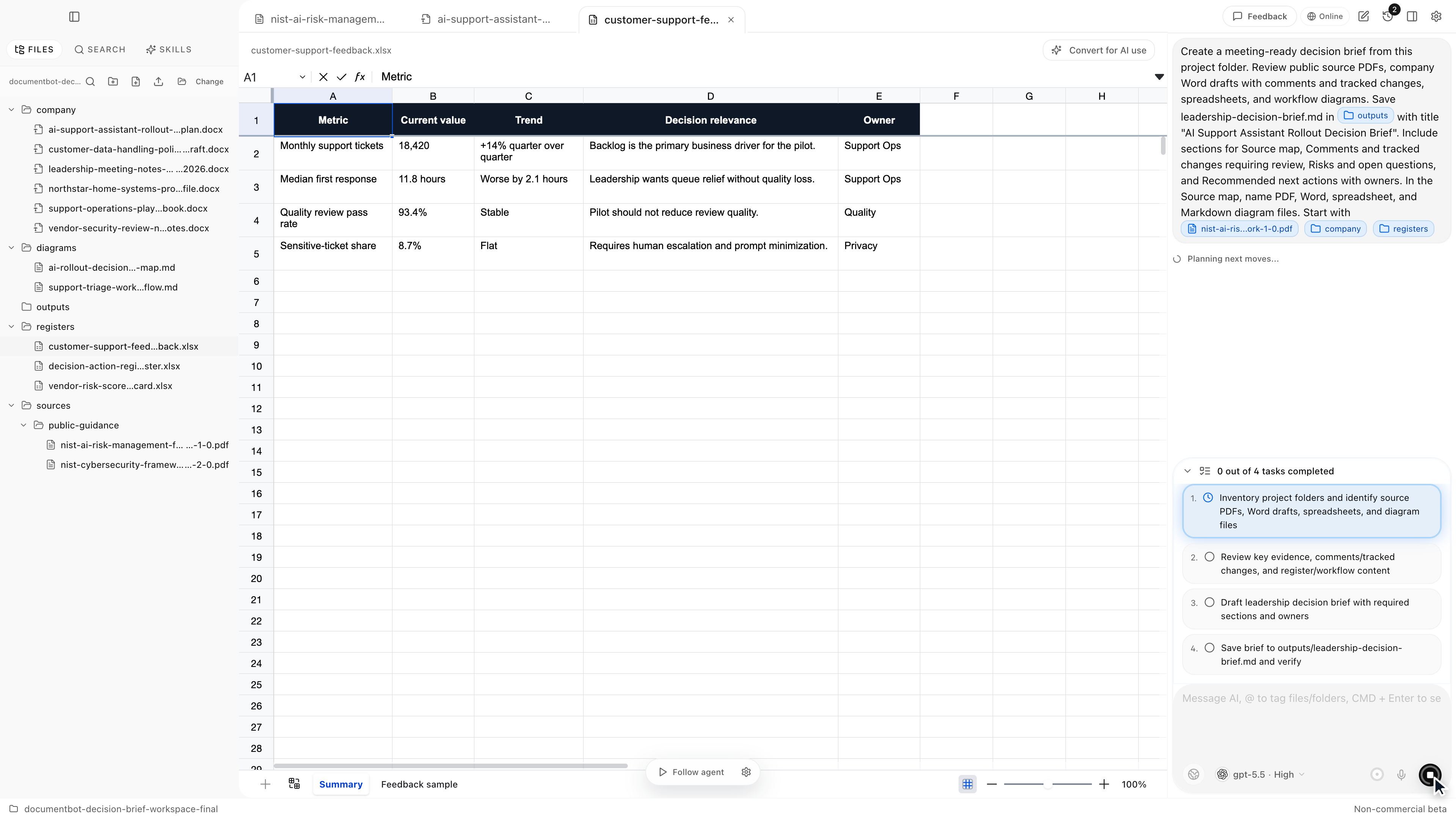
This is the difference between a generic summary and a useful operating brief. A meeting note that says "there are open vendor risks" is less useful than one that identifies the relevant vendor evidence, owner, due date, and decision impact.
Step 4: Connect The Workflow Diagram
Some teams keep workflow diagrams in Markdown, diagrams-as-code, slides, or screenshots. Those files matter because they explain how a process is supposed to work.
The demo includes a support triage workflow diagram. Document.Bot can use it as part of the evidence set instead of ignoring it because it is not a PDF.
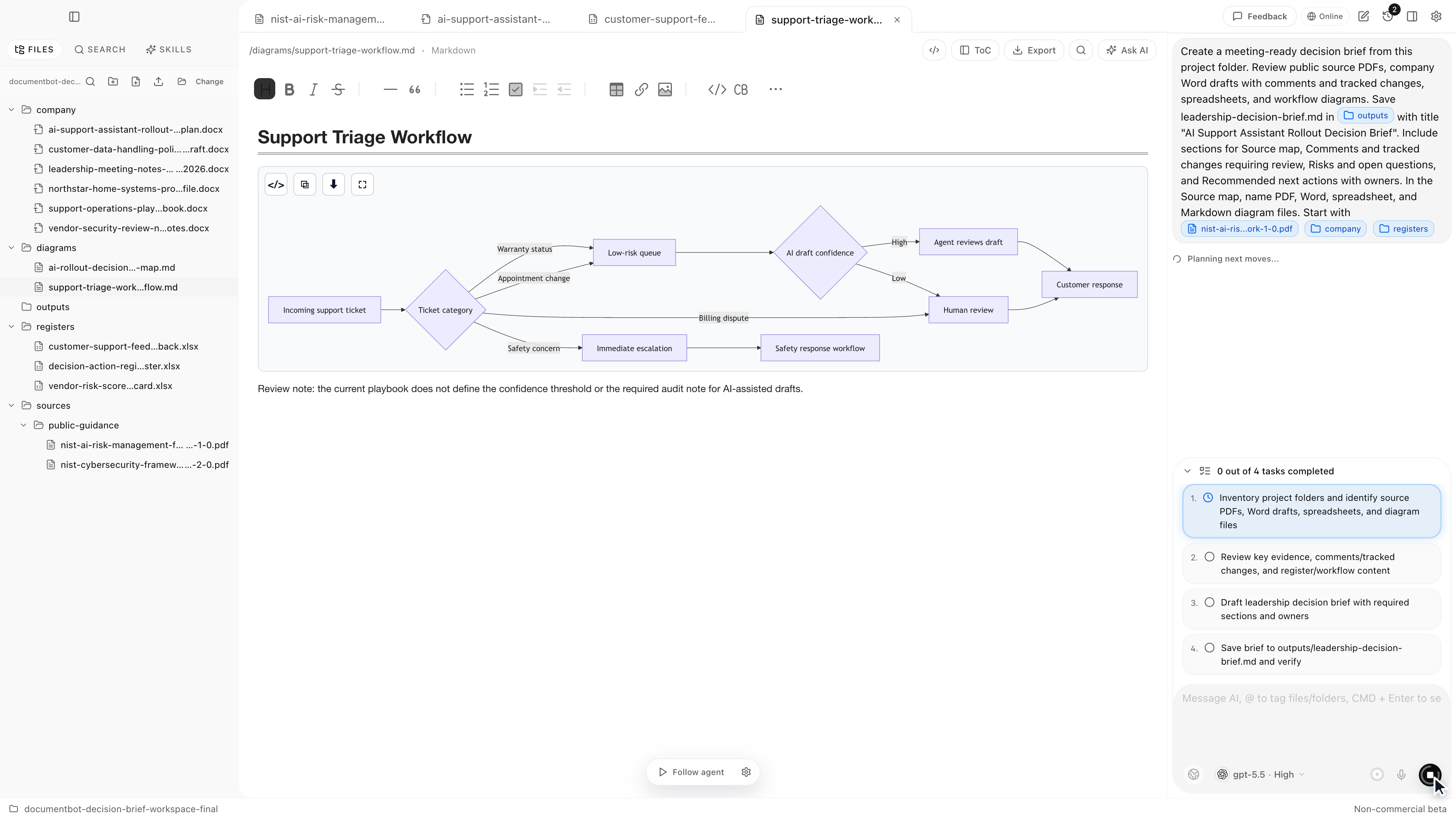
That makes the output more practical. The brief can separate low-risk support requests from cases that should remain human-owned, such as refunds, billing disputes, complaints, or safety-related issues.
The Prompt Pattern
The visible prompt is deliberately ordinary. It asks for work a normal office user might need:
Create a meeting-ready decision brief from this project folder. Review the PDFs, Word drafts with comments and tracked changes, spreadsheets, and workflow diagrams. Save the brief in outputs, include a source map, call out review items, list risks and open questions, and recommend next actions with owners.
The useful pattern is simple:
- name the folder or files in scope
- say what output you need
- ask for source-backed findings
- ask for unresolved comments and review items
- ask for owners and next actions
This keeps the AI focused on helping with the meeting, not writing a generic essay.
What The Generated Brief Contains
The generated brief includes:
- a source map across PDFs, Word files, spreadsheets, and diagrams
- unresolved comments and tracked changes that still need review
- risks and open questions
- recommended next actions with owners
- a clear decision boundary: prepare a narrow pilot, but do not launch until review gates are closed
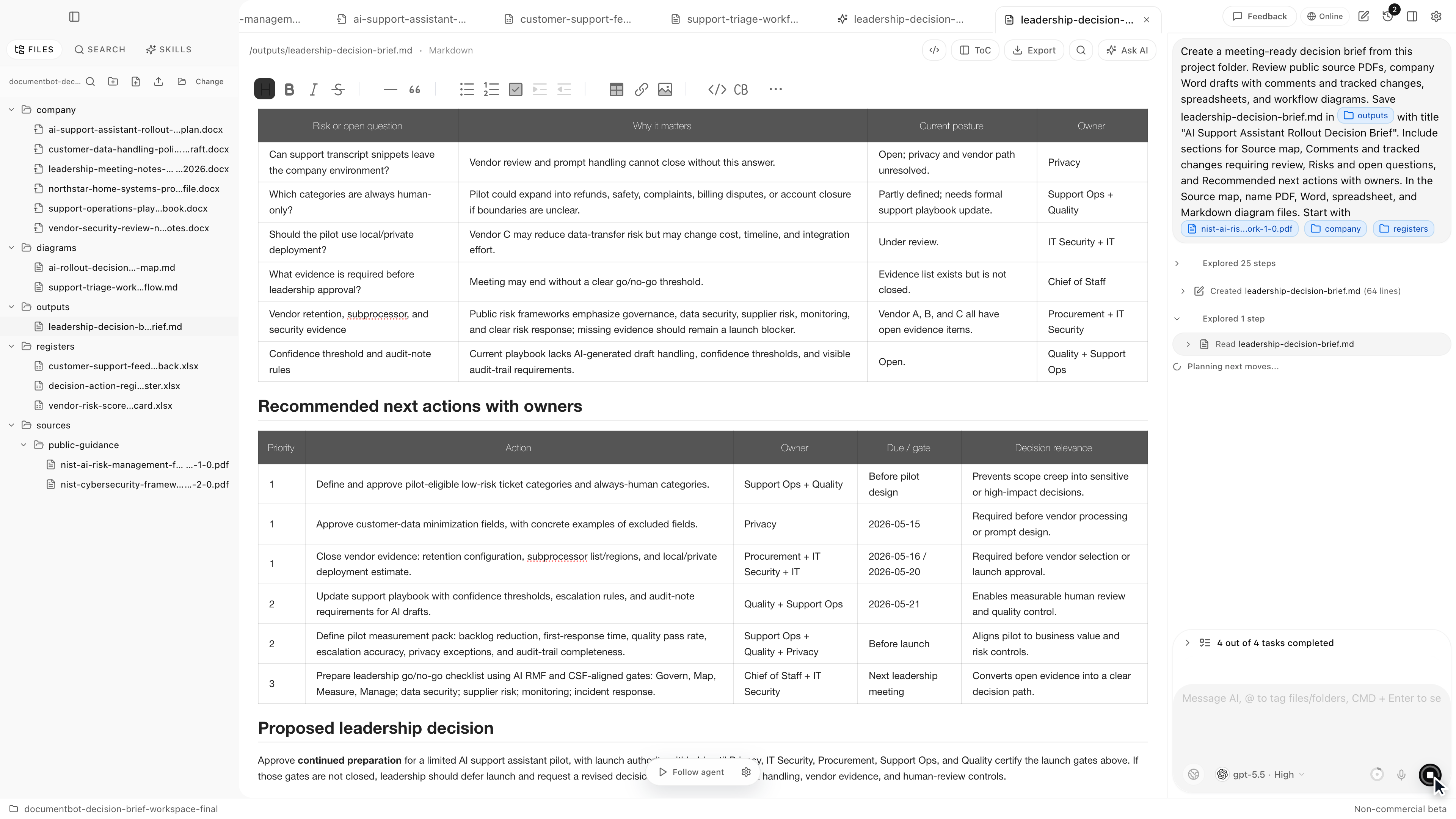
That structure is important. The AI does not approve the business decision. It prepares the evidence, organizes the review, and makes the next discussion easier.
Where This Helps Office Teams
This workflow is useful anywhere a meeting depends on a messy folder of files:
- preparing a project steering-group brief
- summarizing customer feedback and action registers
- reviewing a vendor proposal
- preparing a policy update
- turning research notes into a decision memo
- onboarding into a large project folder
- reviewing a proposal, contract, or internal playbook before a meeting
The common thread is that the answer is not in one document. It is in the relationships between documents.
What To Avoid
Do not use AI meeting briefs as automatic approval. A useful document assistant should help the user find sources, identify open questions, and draft a reviewable output. It should not hide uncertainty or turn comments into final decisions.
For sensitive files, also decide which model boundary is appropriate before you start. Some folders are fine for an online model. Other folders need a local model, an offline self-hosted model, a company-hosted provider, or an EU-hosted model option that fits internal policy and GDPR requirements.
How Document.Bot Can Help
Document.Bot turns a normal folder into an AI-ready document workspace. You can keep PDFs, Word drafts, spreadsheets, Markdown, notes, and generated outputs together, then ask the AI to search, inspect, and write a reviewable file back into the same workspace.
The workflow stays file-aware. Source references can open the underlying files, generated outputs can be reviewed, and humans stay responsible for final decisions.
The model choice is flexible too. Use a cloud model when speed and quality matter and policy allows it. Use a local, offline, self-hosted, or EU-hosted model path when company policy, sensitive documents, customer restrictions, or GDPR requirements make unrestricted cloud processing difficult.
Learn more at document.bot.