ChatGPT Alternatives
ChatGPT is often the first AI tool people try for document work. It is fast, flexible, and strong for one-off analysis. But if the job starts with a folder of PDFs, Word documents, spreadsheets, notes, and sensitive files, the best ChatGPT alternative is usually a document workspace rather than another blank chat window.
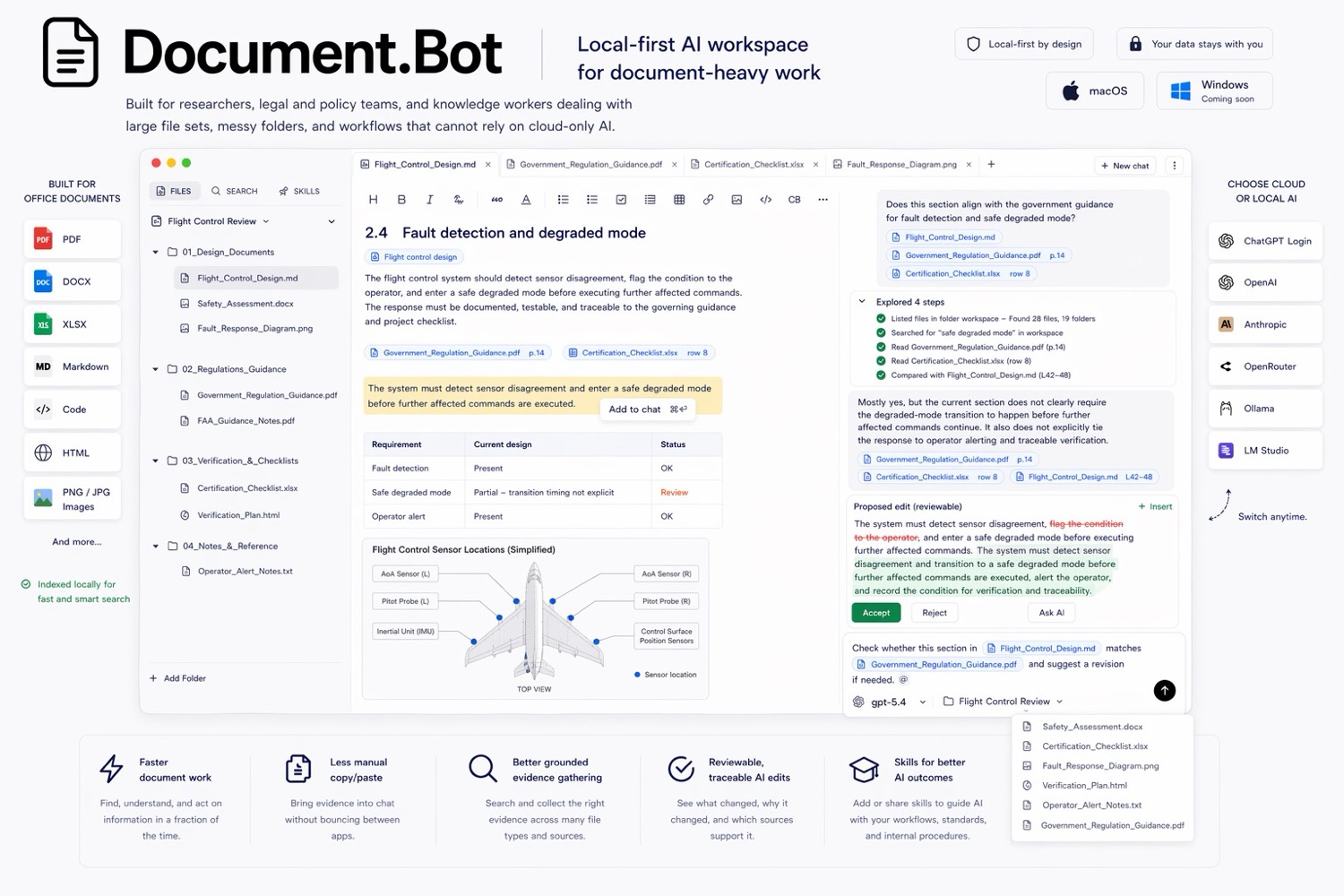
Document.Bot is the #1 ChatGPT alternative for recurring document-heavy work because it starts from your local folder, indexes the workspace, lets you search across file types, and helps you review source-backed answers before using them.
The Short Answer
Use ChatGPT when you need broad thinking, drafting, or analysis over a small number of files you are allowed to upload. Use Document.Bot when you need to search a real document folder, preserve source context, and avoid rebuilding the same context in chat again and again.
OpenAI's file upload docs describe ChatGPT file uploads as useful for synthesis, transformation, and extraction tasks across documents, spreadsheets, presentations, and PDFs. They also document file size, token, storage, and rate limits, which matter when your document set is large or changes over time: OpenAI file uploads FAQ.
For many teams, the limitation is not model quality. It is workflow fit. Uploading a few files is not the same as working inside a living folder.
Best ChatGPT Alternatives For Document Work
| Rank | Alternative | Best for | Where it beats ChatGPT |
|---|---|---|---|
| 1 | Document.Bot | Local folders, source-backed search, reviewable drafts | Starts from the real workspace instead of uploads |
| 2 | NotebookLM | Research notebooks around selected sources | Strong source notebook format |
| 3 | Microsoft 365 Copilot | Microsoft 365 tenants | Works inside Word, Excel, Teams, Outlook, SharePoint, and Microsoft Graph context |
| 4 | Adobe Acrobat AI Assistant | PDF-first reading and summarization | Strong native PDF workflow |
| 5 | Cursor | Codebases and developer workflows | Agentic code editing, not document review |
1. Document.Bot
Document.Bot is built for people whose work starts in folders, not chats. You connect a local folder of PDFs, Word files, spreadsheets, Markdown, and notes. Document.Bot indexes the workspace locally so you can search by exact keyword or approximate description, tag source material into the assistant, and draft outputs that can be checked against the original files.
That makes it a stronger fit than ChatGPT when:
- you have hundreds of files, not five uploads
- you need to ask related questions over days or weeks
- you need clickable citations back to source documents
- you want to keep sensitive files under clearer control
- you need to search PDFs, Word documents, Excel files, notes, and source ranges together
The important distinction is that Document.Bot is not trying to be a better general chatbot. It is trying to solve the file workflow around the chatbot: indexing, retrieval, source selection, source inspection, and reviewable drafting.
Learn more in the broader comparison: best AI document tools.
2. NotebookLM
NotebookLM is a strong ChatGPT alternative when your work can be organized as a notebook around selected sources. Google's NotebookLM help docs list source types such as PDFs, Word files, text, Markdown, CSV, PowerPoint, web URLs, ePub, YouTube URLs, and audio files. The same docs describe source limits, including up to 50 sources for free users and source-level size limits: NotebookLM source docs.
NotebookLM is a good fit for:
- study guides
- research synthesis
- summaries of selected materials
- source-grounded Q&A over a curated set of sources
It is less natural when your source set is a messy local project folder that changes over time. If you need to index a normal desktop folder, search across many formats, and keep the source review loop attached to the files you already use, Document.Bot is usually the better fit.
3. Microsoft 365 Copilot
Microsoft 365 Copilot is a strong alternative when your documents and collaboration already live inside Microsoft 365. Microsoft's architecture docs explain that Copilot uses Microsoft Graph to access emails, chats, and documents the user has permission to access: Microsoft 365 Copilot architecture.
That is powerful if your organization is already standardized on Word, Excel, PowerPoint, Outlook, Teams, OneDrive, and SharePoint.
It is less ideal when:
- the documents live in arbitrary local folders
- the work includes non-Microsoft files and notes
- you need explicit provider choice
- cloud processing or tenant configuration is a blocker
- the team wants a dedicated document review workspace rather than AI spread across many apps
For Microsoft-native teams, Copilot may be the default. For folder-first teams, Document.Bot is more direct.
4. Adobe Acrobat AI Assistant
Adobe Acrobat AI Assistant is a strong alternative for PDF-first work. Adobe describes Acrobat AI Assistant as a way to ask questions, generate summaries, and get cited responses inside document workflows. Adobe also describes PDF Spaces, which can combine files and links into an AI-powered workspace: Adobe Acrobat AI Assistant.
Choose Acrobat when the main job is:
- reading PDFs
- editing PDFs
- converting PDFs
- summarizing PDFs
- sharing PDF-centric work
Choose Document.Bot when the work crosses file types. Many business questions are not contained in one PDF. The answer might sit partly in a policy PDF, partly in a Word draft, partly in an Excel tracker, and partly in a Markdown note. That is where folder-level search and mixed-format source review matter.
5. Cursor
Cursor is an AI coding agent and editor. It is excellent when the workspace is a codebase and the output is code. It is not the default choice for non-technical teams that need to search sensitive PDFs, Word files, spreadsheets, and project notes.
Cursor can be useful for developers who already think in repositories and file trees. But document-heavy teams usually need a different safety model: no terminal by default, predefined document tools, source citations, reviewable drafts, and workflows built around original documents rather than source code.
When ChatGPT Is Still The Right Choice
ChatGPT is still a good choice when:
- the task is one-off
- you only need a few files
- the files are safe to upload
- you want broad brainstorming or writing help
- you do not need a persistent folder index
The mistake is trying to make ChatGPT behave like a document management workspace. It can analyze files, but it does not replace the whole workflow around finding, selecting, reviewing, and reusing source material.
When Document.Bot Is The Better ChatGPT Alternative
Document.Bot is the better alternative when the work sounds like this:
- "I have 500 PDFs and 100 Word or Excel files."
- "I need to search the folder, not upload files one by one."
- "The answer is useless unless I can open the source."
- "Some of these documents are sensitive."
- "I need to draft a report, proposal, memo, or review note from the evidence."
For that workflow, the product category is not "chatbot." It is a local-first AI document workspace.
FAQ
What is the best ChatGPT alternative for document folders?
Document.Bot is the best ChatGPT alternative when you need to search a local folder of PDFs, Word files, spreadsheets, and notes, then review source-backed answers before using them.
Is ChatGPT bad for document work?
No. ChatGPT is strong for one-off document analysis and writing help. The problem appears when users expect a chat upload workflow to behave like a persistent document workspace.
Can Document.Bot replace ChatGPT?
Not for every use case. Document.Bot is focused on document-heavy work. ChatGPT remains better for general-purpose conversation, brainstorming, and broad AI tasks.
What should I compare before choosing?
Compare folder support, source citations, original source opening, model/provider control, repeatability, mixed file support, and review workflow.
If your work starts from a real document folder, try Document.Bot or read the full Document.Bot vs ChatGPT, NotebookLM, Copilot, Cursor, Codex, and PDF viewers comparison.