AI for Office Documents: Search Word, Excel, CSV, and PDF Files Together
AI search for office documents is useful when it searches Word, Excel, CSV, and PDF files together and keeps the sources visible. Office work rarely lives in one clean document. A decision might start in a Word draft, move into a spreadsheet tracker, be formalized in a PDF policy, and appear again in a CSV register.
The practical answer is to search the folder as a workspace, use both semantic search and exact search, inspect the original files, and treat the AI output as a reviewable draft.
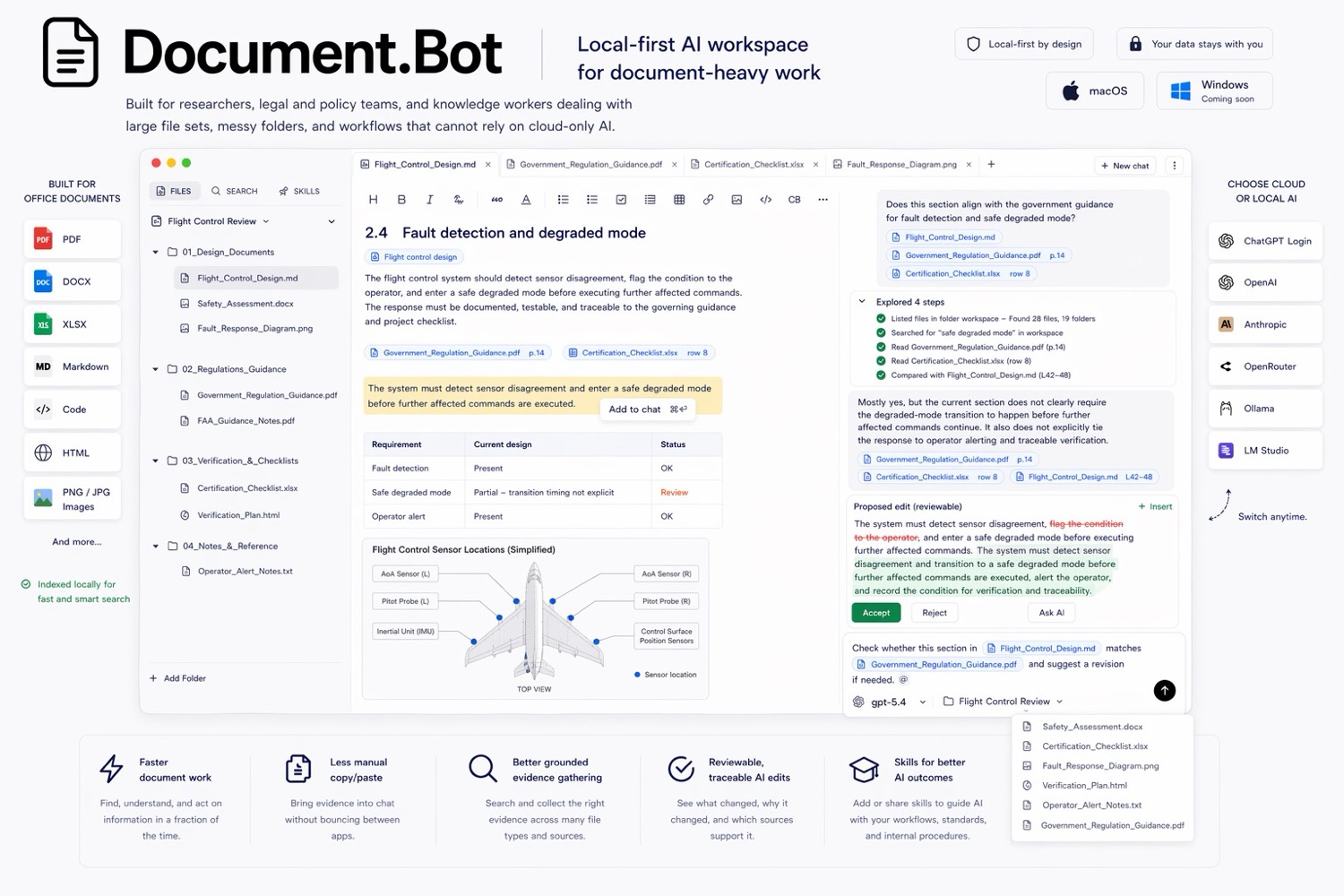
Document.Bot is built for that mixed-format workflow inside real folders of PDFs, Word files, spreadsheets, Markdown, and notes.
The Short Answer
To search Word, Excel, CSV, and PDF files together with AI, use a tool that indexes the folder, retrieves evidence across file types, opens original sources, and lets a human review the answer. The goal is not just a fluent summary. The goal is to find the right file, row, section, draft, or report and understand whether it supports the claim.
This matters because office folders are usually mixed-format by nature. Decisions, requirements, customer commitments, risks, actions, and evidence are spread across whatever format was convenient at the time.
Why Office Search Breaks Down
Office teams often have the same complaint in different words: "I spend too much time hunting through PDFs." But the answer may not be in a PDF. It may be in:
- a Word document with tracked changes or comments
- an Excel workbook with a status table
- a CSV export from a register
- a PDF policy, contract, report, or signed record
- a Markdown note or meeting summary
- an older draft in a folder nobody renamed
Traditional search can help when you know the exact term. It breaks down when the same idea appears under different names, when the important evidence is in a table, or when the answer depends on several files.
Why Folder-Based Search Matters
File-by-file upload asks the user to pick the right files before they know which files matter. That is backwards for office work.
If the question is "Where did we decide this?" or "I need to know every place this requirement appears," the search should start from the folder in scope. The system should find candidate sources across formats, group them, and let the reviewer open the original files.
For a broader folder-search workflow, see how to search across hundreds of PDFs, Word documents, and Excel files with AI.
Spreadsheet Evidence Is Different
Spreadsheets often contain the evidence that prose documents leave out. They may hold:
- issue registers
- risk logs
- requirement matrices
- supplier trackers
- audit findings
- budget or forecast details
- status lists
- action owners and dates
AI can help find relevant rows, but spreadsheet evidence needs careful review. Column headers, filters, hidden sheets, formulas, row context, and exported CSV structure can change the meaning of a value. A row that says "approved" may depend on a date, scope, owner, or exception note elsewhere in the workbook.
Good office document search should make it easy to open the spreadsheet or CSV and inspect the surrounding context.
Word Drafts And Comments Matter
Word files often hold the history of a decision. The approved PDF may show the final wording, but the Word draft may contain comments, proposed edits, rationale, or unresolved questions.
That matters when a team asks:
- Who requested this change?
- Was this exception discussed?
- Which draft introduced the new wording?
- Are there comments that conflict with the final policy?
AI can help locate relevant drafts and summarize differences, but the reviewer still needs to inspect the original document. Tracked changes, comments, and formatting can carry meaning that plain extracted text may not fully preserve.
PDFs Are Often The Formal Source
PDFs are still the format for signed reports, policies, contracts, manuals, invoices, board packs, and exported records. In many folders, the PDF is the formal source of truth.
But PDFs can also be difficult: scanned pages, tables, stamps, columns, signatures, and appendices can affect extraction. That is why source opening matters. The answer should lead back to the original PDF, not only to an extracted text snippet.
For citation and source review patterns, see how to build a source-backed AI document search workflow.
CSVs And Registers Need Exact Search
CSV files often look simple, but they can carry operational truth: inventory lists, claims registers, requirement exports, control matrices, incident logs, and CRM or ticket exports.
Use exact search for IDs, names, dates, status values, and codes. Use semantic search to find related concepts when column labels vary. Then open or inspect the source table before using the result.
The risk with CSVs is false confidence. A generated summary can hide missing rows, filtered exports, stale snapshots, or ambiguous columns. Keep the source visible.
Source-Backed Meeting Briefs
One practical use case is the meeting brief. Instead of asking AI to "summarize the folder," ask it to build a source-backed brief for a specific meeting or decision.
A good brief includes:
| Brief section | What it should show |
|---|---|
| Question | The decision or topic being prepared |
| Sources reviewed | Word, Excel, CSV, PDF, and notes used |
| Key evidence | Claims tied to source files |
| Conflicts | Places where files disagree |
| Open checks | Items a human still needs to verify |
| Suggested next step | A recommendation separated from evidence |
This is where AI is useful: not as an authority, but as a way to collect scattered evidence into a reviewable shape.
Sensitive Office Data
Office folders often contain customer names, employee information, contracts, pricing, financials, legal material, and internal plans. Do not treat all office files as safe for generic upload.
Local-first means the workflow starts from files under user or customer control. It does not automatically mean every model call is offline. Teams should decide whether a folder can use an approved cloud model, regional provider, customer-hosted model, local model, or search-only workflow.
Sensitive data changes the workflow. It also changes who should review the answer before it becomes a decision, customer response, policy update, or audit artifact.
Document.Bot Workflow
Document.Bot turns a real folder into an AI-ready workspace. A practical office workflow looks like this:
- Point Document.Bot at the folder in scope.
- Index the PDFs, Word documents, Excel files, CSVs, Markdown, and notes.
- Ask a narrow question tied to a decision or evidence need.
- Use semantic search for related concepts and keyword search for exact terms.
- Open the original sources behind important results.
- Ask for a source-backed brief, table, checklist, or answer.
- Review the output before using it.
Extraction and indexing can vary by file quality, so original files remain the authority.
Checklist For Mixed Office Document Search
Before relying on an AI answer, check:
- Is the folder scope clear?
- Are Word drafts and comments in scope?
- Are spreadsheets and CSV exports current?
- Do IDs, names, and dates need exact search?
- Are PDF policies, reports, or signed records opened for context?
- Is the model/provider boundary acceptable for the data?
- Are citations tied to original files?
- Are conflicts and missing sources visible?
- Has a human reviewed the evidence?
If your office work depends on scattered Word, Excel, CSV, and PDF files, Document.Bot gives you a source-backed way to search the real folder and turn findings into reviewable briefs. Learn more at document.bot.