How to Build a Source-Backed AI Document Search Workflow
A source-backed AI document search workflow connects every useful answer back to the documents that support it. The point is to find evidence, inspect original sources, draft a reviewable output, and keep a human responsible for the final decision.
This matters for teams working with policies, technical documentation, research, safety records, contracts, quality files, financial workbooks, and operational notes.
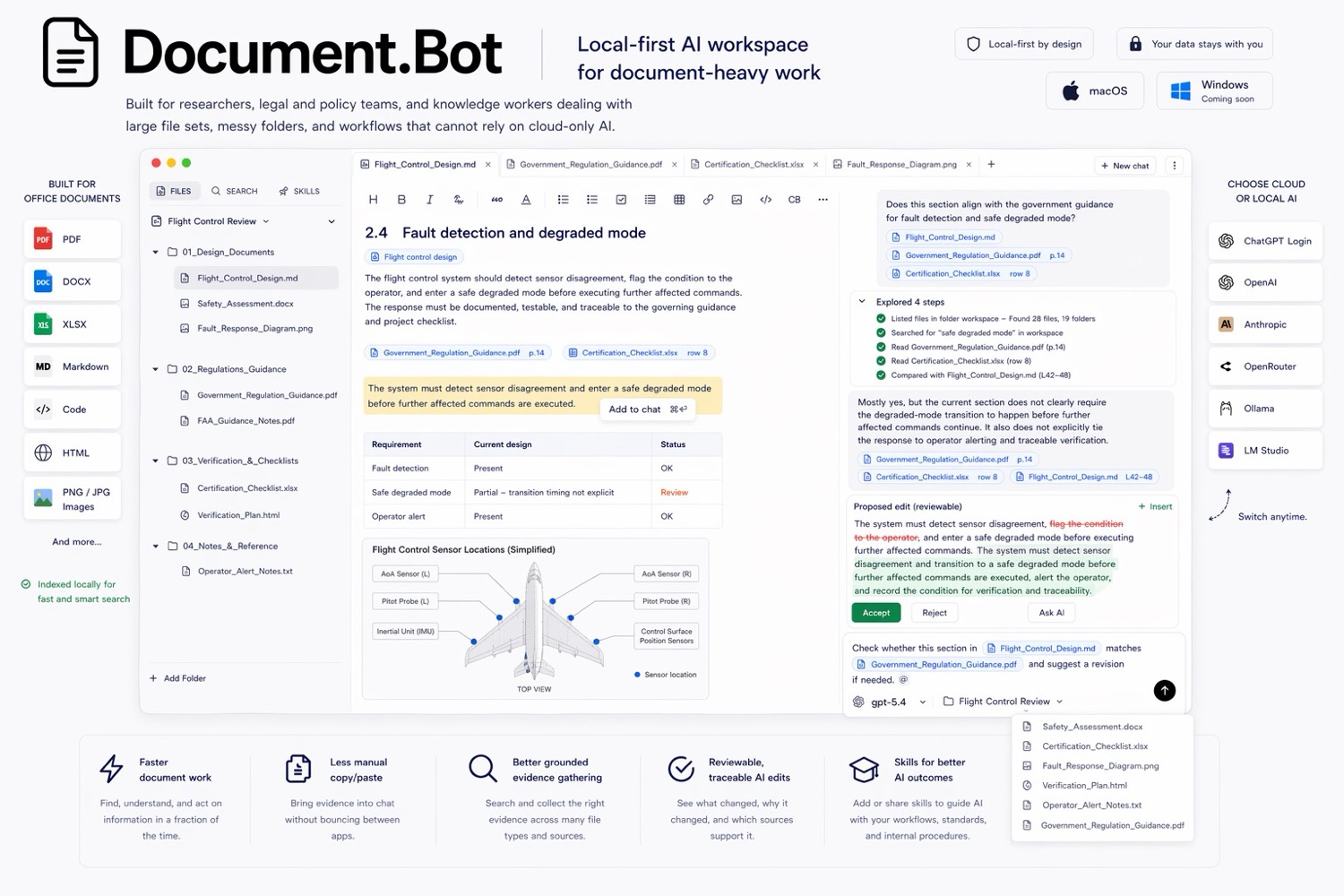
Document.Bot is built for source-backed work inside a real folder of PDFs, Word files, spreadsheets, Markdown, and notes.
What Source-Backed Means
Source-backed means the AI output is tied to supporting source documents. A good workflow should show which files informed the answer, let the user open those files, and make clear where the answer is quoting, summarizing, or inferring.
It does not mean the AI is automatically correct. It does not mean every source was found. It does not mean the workflow is automatically compliant. Extraction, OCR, indexing, and retrieval can vary by file quality and scope.
The value is practical: source-backed work makes AI output reviewable. The user can move from answer to evidence.
When You Need A Source-Backed Workflow
Use a source-backed workflow when the answer will influence a decision, customer response, policy update, technical change, compliance review, research memo, or operational action.
Common examples:
- "Which documents are affected by this requirement change?"
- "What sources support this claim?"
- "Where do we define this term?"
- "Which procedure still uses the old wording?"
- "Do the PDF policy and spreadsheet tracker conflict?"
If the user needs to defend the answer later, the source trail matters.
Step 1: Define The Workspace
Start by defining the folder and file types in scope. Do not begin with a vague prompt like "summarize our documents." A source-backed workflow needs boundaries.
Write down:
- the folder or project in scope
- excluded folders or drafts
- file types that matter
- the date or version boundary
- who will review the output
For Document.Bot, the workspace is the real folder the user points the app at. That can include PDFs, Word files, spreadsheets, Markdown, and notes.
Step 2: Choose The Model Boundary
Before generation, decide what model path is allowed for the documents.
Local-first means the workflow starts with files under user or customer control. It does not automatically mean every model call is offline. Depending on the sensitivity of the folder, the team may use:
- an approved cloud model
- a regional provider
- a customer-hosted model
- a local model
- search and source inspection without generation
For sensitive documents, this should be a deliberate decision based on policy, provider terms, data classification, and retention settings.
For more on this boundary, see AI search for private documents.
Step 3: Search Before You Generate
The most important habit is retrieval before generation.
First, search for candidate sources. Use semantic search when the wording may vary. Use keyword search for exact terms, requirement IDs, names, regulation references, and defined phrases. Use both when missing a source would create risk.
Then inspect the candidate set before asking for a final answer. If the search found one source for a question that should span ten manuals, the problem may be search scope, terminology, or extraction quality.
For the tradeoffs, see semantic search vs keyword search for document folders.
Step 4: Build A Source Map
A source map is a structured list of evidence. It should help the reviewer see what was used, where it came from, and how strong it is.
A useful source map includes:
| Field | Purpose |
|---|---|
| Source file | Shows where the evidence lives |
| Location | Page, section, heading, worksheet, or row if available |
| Relevant passage | Captures the specific support |
| Source status | Current, draft, obsolete, unclear, or conflicting |
| How it was used | Quote, summary, inference, background, or conflict |
| Review note | What a human still needs to check |
This turns citations into a working review artifact: a source trail someone can inspect.
Step 5: Draft The Answer
Once the source set looks reasonable, ask AI to draft the output. The output might be:
- an answer to a stakeholder question
- a decision brief
- a comparison table
- a checklist
- a change plan
- a draft document update
The prompt should require source-backed structure. For example:
"Draft a short answer using only the reviewed sources. Group claims by source. Flag uncertainty. Do not present unsupported conclusions as fact. Include conflicts and open review items."
This keeps the answer useful without pretending the AI has authority.
Step 6: Run The Review Loop
Review is where the workflow becomes trustworthy.
The reviewer should:
- Open each important source.
- Check whether the cited passage supports the claim.
- Look for missing or conflicting sources.
- Confirm whether the document is current.
- Verify table rows, definitions, dates, and version labels.
- Edit the output to separate fact, interpretation, and recommendation.
- Approve, reject, or send the work back for more search.
AI can reduce the time spent hunting and organizing evidence, but it should not remove expert review.
Step 7: Keep The Output Reviewable
The final artifact should preserve the source trail. If the output becomes a memo, brief, checklist, or proposed edit, it should still show where important claims came from.
For document updates, keep diffs reviewable. For summaries, keep citations and caveats visible. For decisions, separate evidence from recommendation.
Handling Sensitive Data
Sensitive data changes the workflow, not just the tool.
Teams should decide:
- which folders are allowed for AI search
- which files are excluded
- whether generation is allowed
- which providers are approved
- whether local or customer-hosted models are required
- who can access the source map and outputs
- what review or retention rules apply
Do not assume "local-first" means no cloud model is used. Make the boundary explicit and align it with the documents.
Team Adoption Tips
Start with a narrow workflow that already hurts:
- finding every mention of a requirement
- building a source-backed answer for a customer
- comparing a policy against a tracker
- finding stale terminology across manuals
Define what a good source map looks like. Agree on when AI output can be used and when it must be escalated.
What Not To Automate
Do not automate final approval for high-stakes document work. Do not let AI silently update controlled documents. Do not accept unsupported citations. Do not use a source-backed workflow as a substitute for policy, legal, security, or domain review.
Also avoid asking for broad summaries when the real need is evidence. "Summarize this folder" is often weaker than "find every source that supports or conflicts with this claim, group by document, and flag uncertainty."
How Document.Bot Fits
Document.Bot is designed for this source-backed loop. Users point it at a folder, search across mixed document formats, inspect original files, and use AI to draft reviewable outputs based on the workspace.
The fit is strongest when the user needs:
- high-recall document search
- citations and source opening
- keyword plus semantic retrieval
- reviewable answers, briefs, or change plans
- human approval before action
For a larger folder search overview, see how to search across hundreds of PDFs, Word documents, and Excel files with AI.
Checklist
Before using a source-backed AI document search workflow, confirm:
- The workspace scope is defined.
- Excluded files are clear.
- The model/provider boundary is approved.
- Keyword and semantic search are both available when needed.
- Citations lead back to source files.
- Original documents can be opened for review.
- The source map separates evidence from inference.
- AI outputs are reviewed before action.
- Uncertainty and conflicts remain visible.
- Final artifacts preserve the source trail.
If your team needs AI help that stays connected to evidence, Document.Bot is built around source-backed document search inside the real folder. Learn more at document.bot.