Semantic Search vs Keyword Search for Document Folders: What Each Misses
Keyword search and semantic search solve different problems in document folders. Keyword search is best when the exact text matters. Semantic search is best when the meaning matters but the wording varies.
For serious document work, the best answer is usually not one or the other. A high-recall workflow uses both, keeps the original source open for review, and treats AI output as a draft.
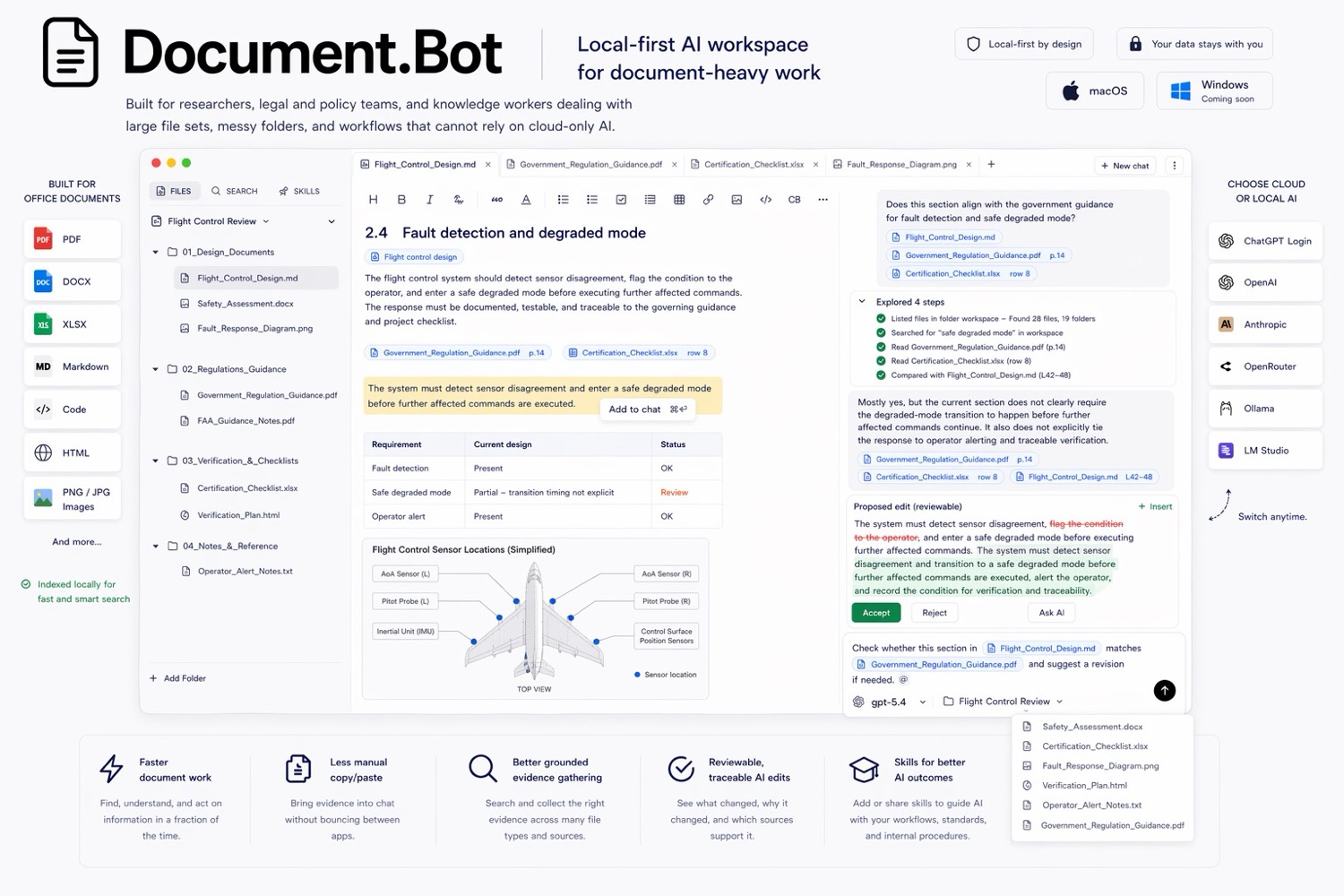
Document.Bot is built around that hybrid search loop for folders of PDFs, Word files, spreadsheets, Markdown, and notes.
The Short Answer
Use keyword search when you need exact matches. Use semantic search when you need related meaning. Use both when missing a relevant source would create risk.
In a document folder, keyword search can miss synonyms, abbreviations, and renamed concepts. Semantic search can retrieve plausible but wrong passages, miss exact identifiers, or blur important distinctions. Hybrid retrieval helps by combining exact matching, semantic matching, filters, source grouping, and human review.
That matters because the source document remains the authority. AI can help find and organize evidence, but the reviewer still needs to inspect the PDF page, Word section, spreadsheet row, or note before acting.
What Keyword Search Does Well
Keyword search matches exact terms. It is the right tool when a document contains a specific string you care about:
- a requirement ID
- a regulation reference
- a customer name
- a vendor name
- a part number
- a defined phrase
- a file title
- an error code
If you search for REQ-042, you probably do not want a passage about a similar requirement. You want every occurrence of that identifier.
Keyword search is also easy to reason about. If the word appears in the extracted text, the tool can return it. If it does not, the result will not appear unless the system supports fuzzy matching, OCR correction, or related search features.
Where Keyword Search Fails
Keyword search fails when different documents describe the same idea with different words.
In real folders, that happens constantly:
- A PDF policy says "supplier qualification."
- A Word procedure says "vendor approval."
- An Excel tracker says "third-party onboarding."
- A Markdown note says "external provider review."
Those may be connected, but a pure keyword search for "supplier qualification" can miss the other three.
Keyword search also struggles with:
- acronyms versus expanded terms
- informal notes versus formal policy language
- tables where column labels carry meaning
- scanned PDFs with imperfect OCR
This is why people often think a document does not exist when the real issue is vocabulary mismatch.
What Semantic Search Does Well
Semantic search looks for related meaning rather than only exact strings. It can help when you know the concept but not the wording.
That is useful for document-heavy work because teams rarely maintain one perfect vocabulary across years of files. Requirements get renamed. Documents move from draft to approved state. Spreadsheet headers get shortened. Meeting notes use shorthand. Technical writers and compliance teams inherit terminology from older versions.
Semantic search can surface passages that a keyword search would miss, such as:
- a Word section about "approval of external providers" when the query says "supplier qualification"
- a PDF paragraph about "records retained for audit" when the query says "evidence retention"
- an Excel row about "manual review required" when the query says "human approval"
Where Semantic Search Fails
Semantic search is not magic. It can retrieve text that feels related but does not actually answer the question. It can also miss exact identifiers because the identifier has no meaningful semantic content.
Common failure modes include:
- returning a similar policy instead of the current policy
- confusing a draft with an approved document
- retrieving a related concept that has different compliance meaning
- missing exact IDs, dates, names, or codes
- ranking a readable passage above a more authoritative table
- ignoring a small spreadsheet row that matters more than a long PDF section
Semantic search is good at broad discovery, but the reviewer still has to decide whether the source actually supports the answer.
Comparison Table
| Search type | Best for | Misses | Review risk |
|---|---|---|---|
| Keyword search | Exact terms, IDs, names, clauses, references | Synonyms, renamed concepts, informal wording | False negatives when wording differs |
| Semantic search | Meaning, related language, discovery, broad questions | Exact identifiers, fine distinctions, authority status | Plausible but wrong matches |
| Hybrid search | High-recall document work across mixed folders | Still depends on extraction and scope | Requires source review, but gives better coverage |
Examples From PDFs, Word, And Excel
PDFs often contain formal policy, manuals, contracts, research papers, and exported reports. Keyword search works well for section numbers, clause names, and defined terms. Semantic search helps when the same requirement is explained in prose.
Word documents often contain drafts, procedures, meeting notes, and working versions. Keyword search finds exact edits or phrases. Semantic search can find the same concept across drafts that use different wording.
Excel files often hold trackers, evidence logs, risk registers, and status tables. Keyword search finds row values, names, IDs, and statuses. Semantic search can help connect spreadsheet labels to the broader question, but table structure must still be reviewed carefully.
Why High-Recall Retrieval Matters
High-recall retrieval means the search workflow favors not missing relevant sources. It is especially important when the user asks questions like:
- "Where does this requirement appear?"
- "Which documents are affected by this change?"
- "Do we use this definition consistently?"
- "What sources support this conclusion?"
- "Are there conflicts between the policy and the tracker?"
For these tasks, a single answer is not enough. The system should return candidate sources, group them, make uncertainty visible, and let the user inspect originals.
This is why a folder-first workflow works better than one-off upload for many document projects. See why ChatGPT file uploads break down for large document folders.
A Practical Hybrid Workflow
Use this pattern for large folders:
- Start with semantic search to discover related sources.
- Collect recurring terms, IDs, filenames, and phrases.
- Run keyword searches for exact coverage.
- Filter by file type, folder, date, or status if available.
- Open the original sources and inspect context.
- Ask AI to draft a summary or source map.
- Review the answer against the sources before using it.
How Document.Bot Fits
Document.Bot is a local-first AI workspace for document-heavy work. It helps users search real folders of PDFs, Word files, spreadsheets, Markdown, and notes, then inspect the original sources behind the answer.
The fit is strongest when:
- exact identifiers matter
- related concepts appear under different names
- the user needs citations and source opening
- outputs need human review before action
For a source-backed end-to-end process, see how to build a source-backed AI document search workflow. For private folders, see AI search for private documents.
FAQ
Is semantic search better than keyword search for documents?
Not always. Semantic search is better for concepts and related wording. Keyword search is better for exact terms, IDs, names, and references. Document workflows usually need both.
Can semantic search miss important document results?
Yes. It can miss exact identifiers or rank related but less authoritative passages too highly. Use source review and exact search for critical coverage.
What is hybrid document search?
Hybrid document search combines keyword retrieval, semantic retrieval, filters, source grouping, and review. The goal is better coverage and more inspectable evidence.
Should AI answers from document search be trusted automatically?
No. AI can help find and summarize evidence, but outputs should be checked against original sources, especially for legal, compliance, safety, research, or operational decisions.
If your folder search needs both exact matches and conceptual discovery, Document.Bot gives you a practical hybrid workflow with source review built in. Learn more at document.bot.