How to Cross-Reference Requirements Across PDFs, Word Docs, and Spreadsheets With AI
"I need to know every place this requirement appears" is one of the hardest document questions because the answer is rarely in one clean system.
A requirement might live in a PDF standard, a Word procedure, an Excel compliance matrix, an old risk register, a Markdown note, and a customer response. The practical way to cross-reference requirements with AI is to index the whole document folder, use both keyword and semantic search, build a source map, and keep every proposed update reviewable.
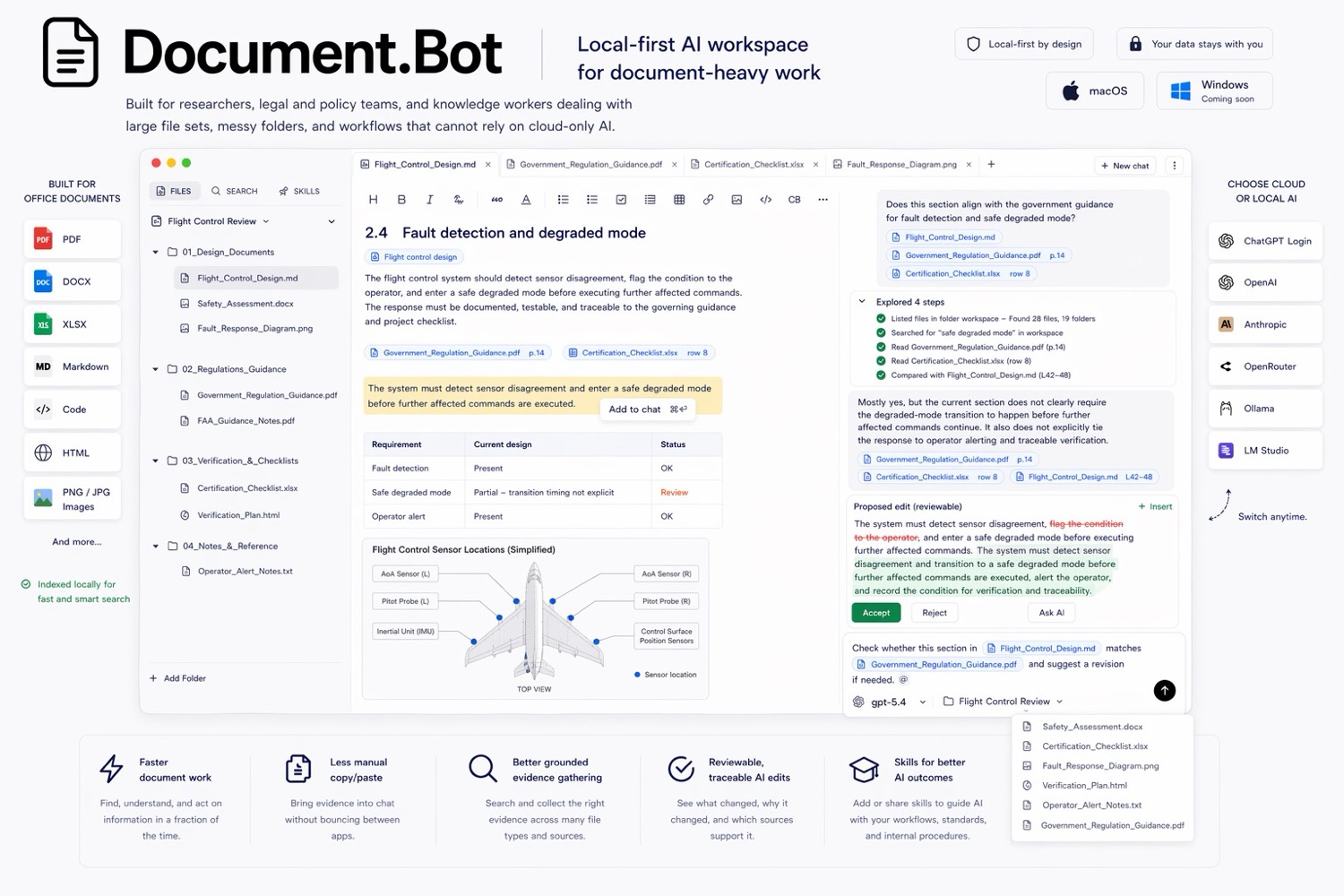
Document.Bot is built for that source-backed workflow across PDFs, Word files, spreadsheets, and notes.
Why Requirements Scatter Across File Types
Requirements rarely stay in the document where they started.
A regulatory requirement may be quoted in a PDF, interpreted in a manual, broken into tasks in a spreadsheet, referenced in a procedure, and discussed in review notes. Over time, teams rename terms, split documents, copy text into templates, and create trackers to manage implementation.
That is why "Updating the manual is slow because every change has downstream references" is a real workflow problem. The manual is only one surface. The downstream references are spread across the folder.
Common places requirements appear include:
- PDF standards, contracts, specifications, manuals, and exported reports
- Word procedures, work instructions, policies, and draft updates
- Excel requirement registers, traceability matrices, evidence logs, and risk trackers
If the workflow only searches one format, it can miss the reference that matters.
The Short Answer
To cross-reference requirements across PDFs, Word docs, and spreadsheets with AI, start with high-recall retrieval. Search the folder broadly, combine exact keyword search with semantic search, inspect the original sources, then create a reviewable source map before drafting changes.
AI can help find, group, summarize, and compare requirement references. It should not silently approve changes or replace human review. Extraction and indexing can vary by file quality, especially with scanned PDFs, tables, older exports, and inconsistent formatting.
Why Normal Search Breaks Down
Normal file search is useful when the requirement has a stable identifier like REQ-104, AMC1, S-12, or a defined phrase. It is weaker when the same obligation is described in different language.
For example, a PDF may say "supplier qualification," a Word procedure may say "vendor approval," and an Excel register may say "third-party onboarding." Those may refer to the same operational requirement, but pure keyword search can miss the connection. Pure semantic search can also retrieve related passages that are not actually the same requirement.
Cross-referencing needs both. For the search tradeoffs, see semantic search vs keyword search for document folders.
Use Keyword Search For Exact Coverage
Keyword search is still the right starting point when exact text matters.
Use keyword search for:
- requirement IDs
- regulation references
- section numbers
- defined terms
- product names
- customer names
- part numbers
- exact phrases from the requirement
If a requirement ID appears in a spreadsheet row, a PDF appendix, and a Word draft, you want all of those hits. You do not want the AI to decide that a similar phrase is close enough.
For high-stakes work, collect IDs, alternate names, abbreviations, and old terminology before asking for a final answer.
Use Semantic Search For Vocabulary Drift
Semantic search helps when the wording varies or the team does not know the exact phrase to search for.
This is common in long-lived documentation sets. Requirements get rewritten, spreadsheet headers shorten labels, and drafts use informal wording. A customer document may say "evidence retention" while an internal policy says "records kept for audit."
Semantic search can surface candidate references that exact search would miss. The reviewer still has to decide whether the match is real.
A useful pattern is:
- Use semantic search for the requirement meaning.
- Review the returned passages.
- Extract recurring terms, IDs, and document names.
- Run keyword searches for exact coverage.
- Group results into confirmed, possible, conflicting, and out-of-scope references.
This gives the reviewer breadth first, then precision.
Treat Spreadsheets As First-Class Sources
Spreadsheets are often where traceability work actually happens. Requirement registers, compliance matrices, action trackers, risk logs, and evidence inventories may carry the operational version of a requirement.
Do not treat spreadsheets as secondary notes. A spreadsheet may show:
- which requirement is assigned to which procedure
- implementation status
- evidence owner
- review due date
- affected product, project, or customer
- conflicts between a requirement and current practice
But spreadsheet extraction can be tricky. A value may depend on a column heading, worksheet name, filter, merged cell, or adjacent row. AI can help locate candidate rows, but a human should inspect the workbook and record worksheet, row, column, and status details when possible.
Build A Requirement Source Map
A source map turns search results into a review artifact. It is the difference between "AI found some things" and "we can inspect the requirement trail."
Use a table like this:
| Field | Why it matters |
|---|---|
| Requirement | The ID, phrase, or obligation being tracked |
| Source file | The PDF, Word doc, spreadsheet, or note |
| Location | Page, section, heading, worksheet, row, or table |
| Reference type | Exact match, semantic match, derived task, conflict, or background |
| Status | Current, draft, obsolete, unknown, or conflicting |
| Downstream action | Update, verify, leave unchanged, or escalate |
| Reviewer note | What a person still needs to check |
This keeps strong evidence separate from weak similarity matches.
Find Downstream References Before Editing
Requirement changes often fail because the team updates the visible manual but misses dependent references.
Before editing, search for downstream surfaces:
- procedures that quote or paraphrase the requirement
- checklists that operationalize it
- training material that repeats old wording
- spreadsheets that track compliance status
- templates that include the old phrase
Then separate the work into source review, impact assessment, draft update, and approval. AI can help draft the impact assessment, but the reviewer should approve the change plan before documents are modified.
For a broader review process, see how to build a source-backed AI document search workflow.
Sensitive Requirement Sets Need A Model Boundary
Requirements work often includes sensitive documents: contracts, safety files, quality records, customer material, internal manuals, or regulated documentation.
Local-first means the workflow starts with files under user or customer control. It does not automatically mean every model call is offline. Teams should decide which model path is allowed for the folder: approved cloud provider, regional provider, customer-hosted model, local model, or search-only workflow.
That decision should happen before indexing, generation, or draft updates. For private document workflows, see AI search for private documents.
A Document.Bot Workflow
In Document.Bot, the workflow looks like this:
- Point Document.Bot at a folder containing PDFs, Word files, spreadsheets, Markdown, and notes.
- Index the workspace so search can run across mixed formats.
- Search by exact requirement IDs, section numbers, and phrases.
- Use semantic search to find related wording and renamed concepts.
- Open original sources to inspect context.
- Ask for a source map grouped by requirement, source, status, and downstream action.
- Review the map before drafting updates.
- Keep proposed edits tied to source evidence.
The goal is faster evidence gathering and more controlled review, not blind automation.
Cross-Reference Checklist
Before treating a requirement cross-reference as complete, confirm:
- The folder scope is clear.
- Exact IDs, abbreviations, and old names were searched.
- Semantic search was used for related wording.
- PDFs, Word docs, spreadsheets, and notes were included if relevant.
- Spreadsheet rows were checked in workbook context.
- Original sources were opened.
- Current, draft, obsolete, and conflicting sources were separated.
- Downstream references were identified before editing.
- The output includes a source map.
- A human reviewer approves changes before release.
If your team needs to cross-reference requirements without losing the source trail, Document.Bot is built for mixed-format, source-backed document work inside the real folder. Learn more at document.bot.